MFC Satellite DLLs
I only recently learned, that MFC version 7.0 and later have support for satellite DLLs. After a little investigation, I found that this mechanism works fundamentally better than having resources for multiple languages compiled into the main application.
The problem with compiling multiple languages into an MFC application, is that there is no easy way to switch between languages. Originally, this was possible with the Win32 function SetThreadLocale, but Microsoft broke this functionality (presumably by design) as long ago as Windows 2000. Loading language specific dialog and menu-resources requires additional code in each affected component.
If you compile language resources into a separate DLL, all you have to do is load the DLL with LoadLibrary() and then call AfxSetResourceHandle() with the module handle (HMODULE) of the DLL. Providing all resources are present in the DLL, this seems to work perfectly.
In Version 4.7x.0028 of the Add-In, there is now build in support for MFC satellite DLLs. I will try to explain the details in this article.
Selecting MFC satellite DLL support
|
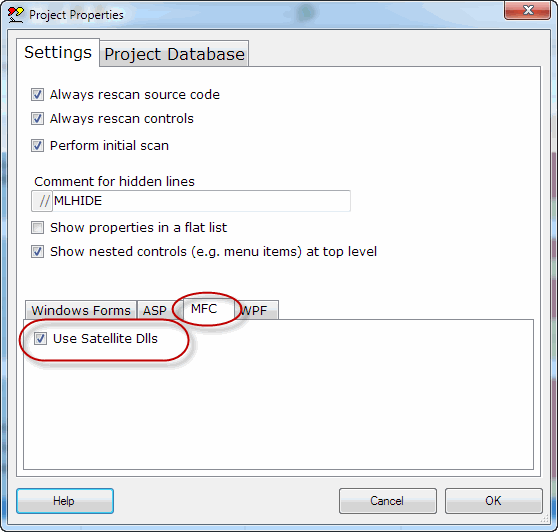
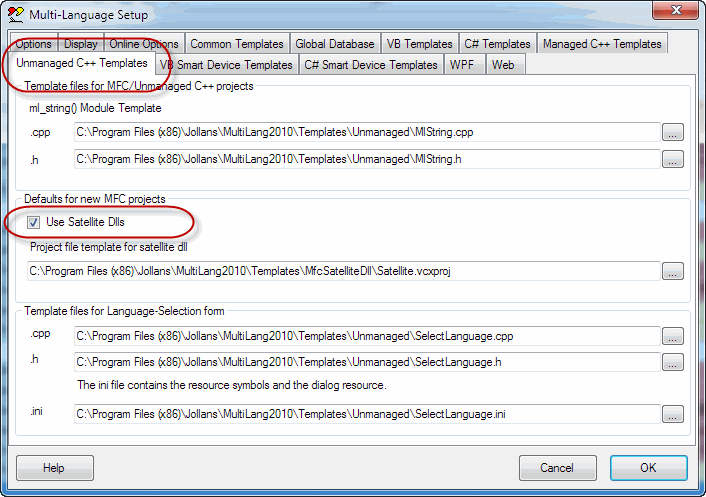
You can select support for MFC satellite DLLs for the current project using the project properties dialog, shown here on the right You can set the default for new projects using the Add-in settings dialog, shown below. |
|
|
You can access these two dialogs using the toolbar buttons indicated here. |

|
Satellite DLL projects
If you have selected satellite DLL Support, then the Add-In will create an additional project to generate the DLL, for each language in your project.
You can see these DLL projects in the solution explorer window in the following screenshot.

The DLL projects are created with the following settings:
- Project name is based on the original project name, with the language tag as a suffix, e.g. scribble_ko for the Korean language DLL.
This is automatically used as the name of DLL. - Project directory is a subdirectory of the main project directory.
- No entry point which means that the DLL does not need to contain any code at all.

- Output directory is a subdirectory of the output directory in the main project

The directory structure is illustrated below:

Note that this structure is based on the structure used by Windows Forms projects in C# or VB.NET.
I have deliberately decided not to use the three character abbreviations typically used by MFC projects (e.g. ENU for English), because I consider them to be out of date.
Each satellite DLL project has two source files:
| resource.h | This is an exact copy of the file resource.h in the main project. |
| satellite.rc | This is a copy of the .rc file in the main project. The Add-In automatically changes the LANGUAGE statement and inserts the texts for specific language. |
Language selection form
The Add-In is now able to add a language selection form to an MFC project automatically. The command is in runtime-support menu, as shown here:

The language selection form is defined in three template files:
- SelectLanguage.h
- SelectLanguage.cpp
- SelectLanguage.ini, which contains:
- a list of symbols which will be added to your resource.h file
- a dialog resource which will be added to your project's .rc file
The Add-In will add the .h and .cpp files to your project and add the dialog resource to your .rc file.
In addition, it will add code to your InitInstance function to show the language selection dialog.
BOOL CScribbleApp::InitInstance()
{
    CSelectLanguage sl ;
    sl.LoadSettingsAndShow() ;
This is what the code in the SelectLanguage form actually does:
|
Creates a list of available languages |
The list of languages is primarily based on the array of supported cultures which the Add-In generates in MlString.cpp, for example. Array of supported cultures const TCHAR* SupportedCultures[] = { _T("en-US"), _T("da"), _T("en"), _T("cs"), _T("ko") } ; //MLHIDEThe Add-In determines the name of the satellite DLL using the language tag as a subdirectory, exactly as generated by the satellite DLL projects described above. Your installation program must copy the DLLs to the target machine using this directory structure. If the DLL is actually present, then the language is shown in the list. If the DLL is missing, then it is not shown, so you an easily restrict the set of available languages, by not installing the DLLs. |
|
Stores the selected language. |
The selected language is written to the registry, for use as the default language the next time that you start the program. The template code stores the language in the registry key HKEY_CURRENT_USER\Software\Jollans\Demo You will probably want to change this setting. |
|
Loads the satellite DLL |
The satellite DLL for the selected language is loaded with a call to LoadLibrary(). The returned module handle is then passed into the function AfxSetResourceHandle(). It is then automatically used by MFC to load resources. |
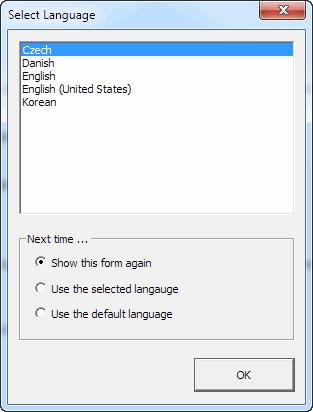
This is what the select language dialog looks like when you start the application.